

NOTES:
- Supported systems: Windows 11, Windows 10 (21H2 and higher), Server 2022, 2025 Desktop Experience
- Each license is valid for one computer only
Downloading Mathematica
Step 1
After you order Mathematica standalone you should receive and email similiar to the one below. Press the link to sign into your account.

Step 2
Sign In using the exact email address that is written on the message that you received from Wolfram

Step 3
Enter the password for your WOLFRAM account. If you don't know your password or forgot it you can press
Forgot your password? to reset it.

Step 4
Once you enter the Wolfram site, you will receive the page below. To enter the download page click on Products & Services.

Step 5
Press the red arrow to get to the Site License

Step 6
Click on Download and choose your operating system

Installing Mathematica
Step 1
Click on the file you downloaded in the last step.
Step 2
Click on Next

Step 3
Click on Launch

Step 4
Decide on the componets you wish to install and click on Next

Step 5
Click on Install

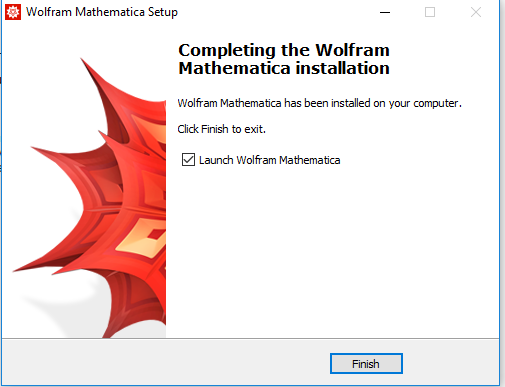
Step 6
- Check Launch Wolfram Mathematica.
- Click Finish
Standalone Activation of Mathematica
Step 1
Choose Activate with sign in through a web browser

Step 2
Click on Sign in to Activate Your Product

Step 3
Enter the Email of your Wolfram account

Step 4
Enter your Wolfram password.

Step 5
Click on Activate

Step 6
You have activated your version of Mathematica. You can now use the application
